Copilot Studio
 M365 Copilot
 Copilot Cowork
 Autopilots
 Governance
If you've been using Copilot Studio for a while, you're used to creating (custom) Copilots. With the recent changes to Copilot Studio nomenclature and terminology, these are now called Agents.
The traditional Copilots (now Agents) most people commonly make can be deployed across a variety of channels like Teams, Slack, your website, etc. but one place where you can't deploy them is inside Copilot for Microsoft 365, aka Microsoft 365 Copilot (for brevity, I will call it M365 Copilot).
To create an Agent that can be deployed as a plugin to extend the M365 Copilot's standard capabilities, you have three choices:
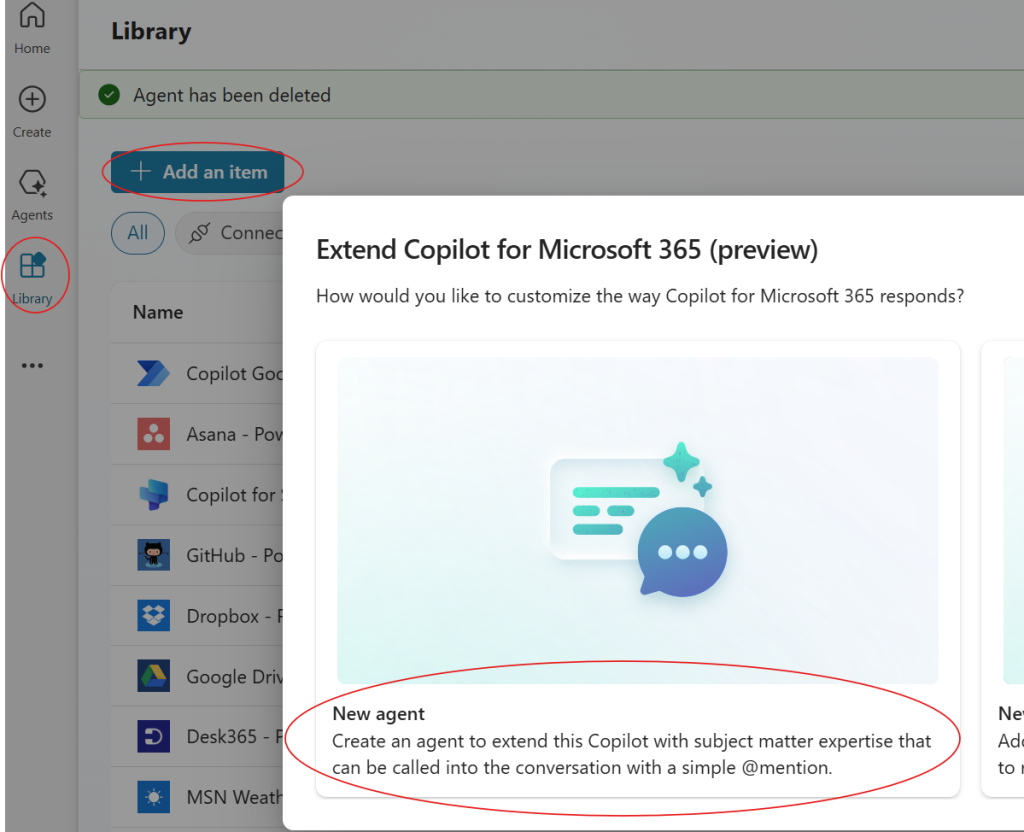
- Option 1 – CUSTOM ENGINE AGENT: In Copilot Studio, click on Library > + Add an Item > New Agent
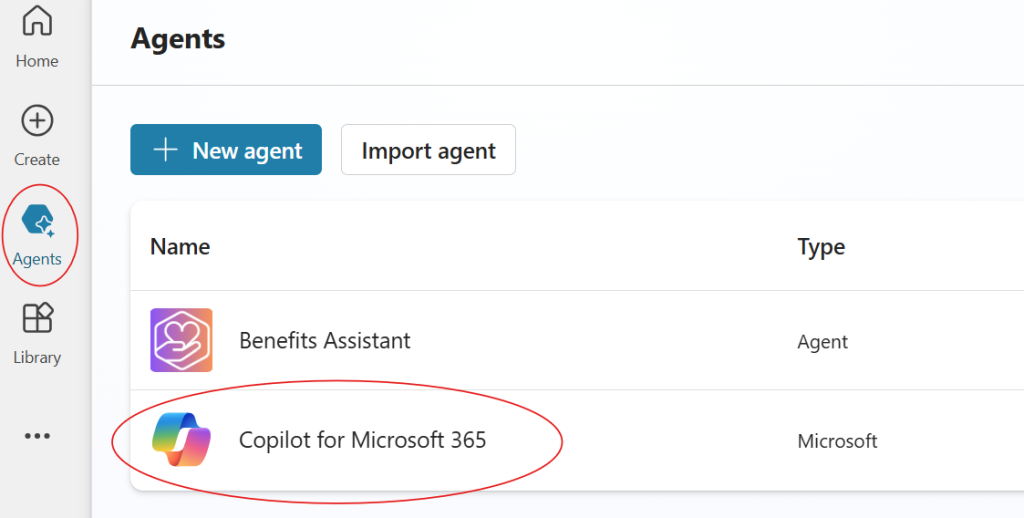
- Option 2 – Also a CUSTOM ENGINE AGENT: Another way in Copilot Studio: Click on Agents > Copilot for Microsoft 365.
- On the page that opens, you will see any existing plugin Agents you've previously created, and you can also create a new Agent by clicking the` +Add button in the Agents box.
- You can also create plugin Actions for M365 Copilot in a similar manner using either of the above Options. We'll explore Actions in detail in another blog article later.
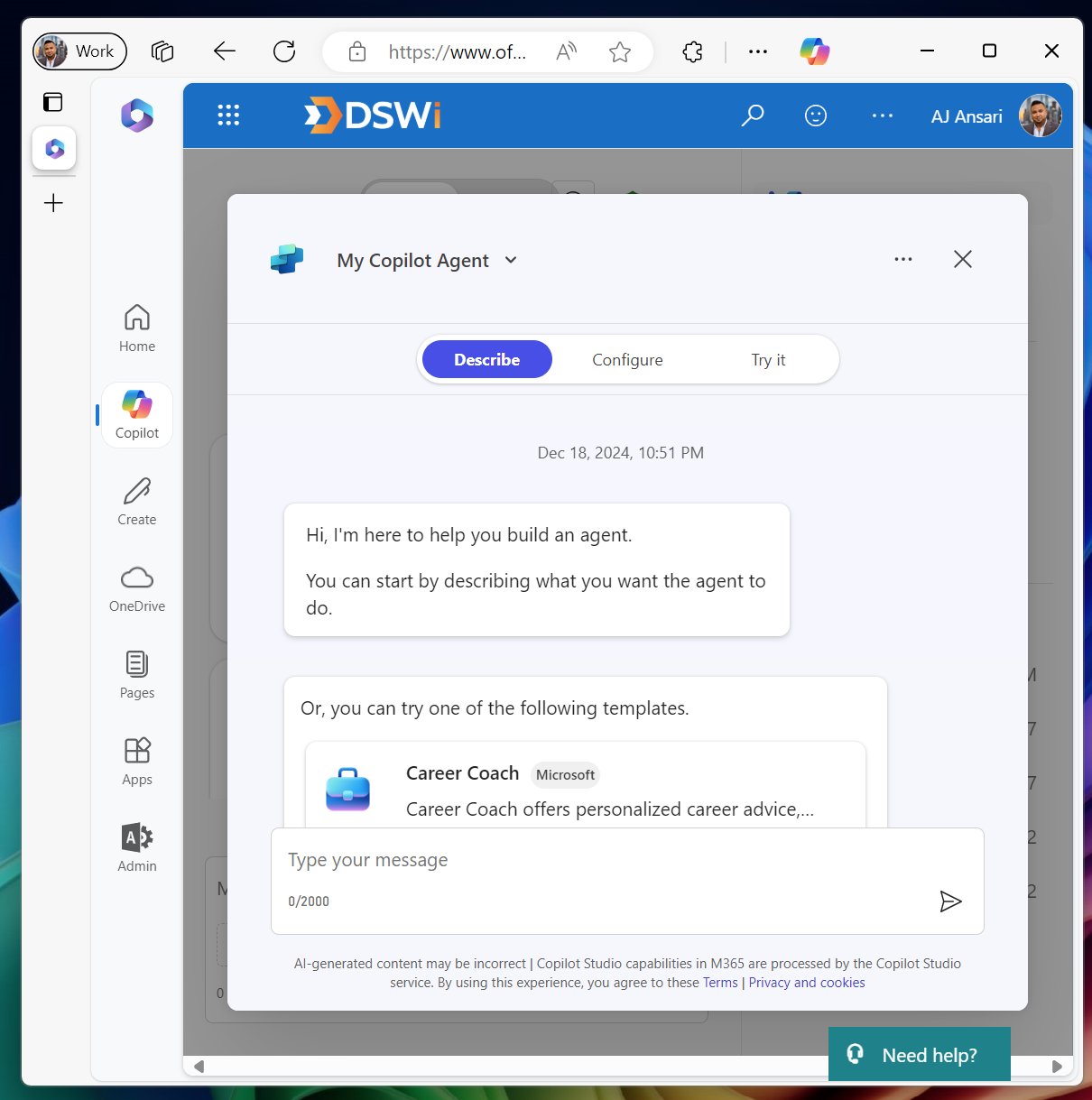
- Option 3 – DECLARATIVE AGENT: This alternative does not require accessing Copilot Studio: If you have an M365 Copilot license, you can create a plugin Agent directly from the Copilot BizChat experience by clicking Create an Agent. This experience is more limited than the other two options above (more below).
When you create plugin Agents using Option 1 and Option 2, you can provide detailed Instructions for Generative AI, add Knowledge sources (important: from SharePoint only), create Actions, allow or block Web Browsing to find information, and add up to six (6) Starter Prompts to help the user with ideas on what to ask the Agent.
When published, these plugin Agents are available inside the M365 Copilot (in the "Work" side of BizChat, as well as in Copilot within Office apps) as well as in Microsoft Teams. In M365 Copilot, you can call your plugin Agent with the using the @ mention. Note that to access your plugin Agent, your user must have a paid license of M365 Copilot.
However, if you create a plugin Agent using the third method, there are some limitations:
- First and foremost, these plugins are for your personal benefit and not for the organization at large
- You can add Knowledge sources from SharePoint, allow / block Web Browsing, and add up to six (6) Starter Prompts
- However, Actions are not available currently but will be coming in the future
- Interestingly, you do get one extra feature: Image generation using Designer (powered by Dall-E)
- While you can access these plugin Agents inside M365 Copilot BizChat and Office apps, they cannot be accessed from Teams
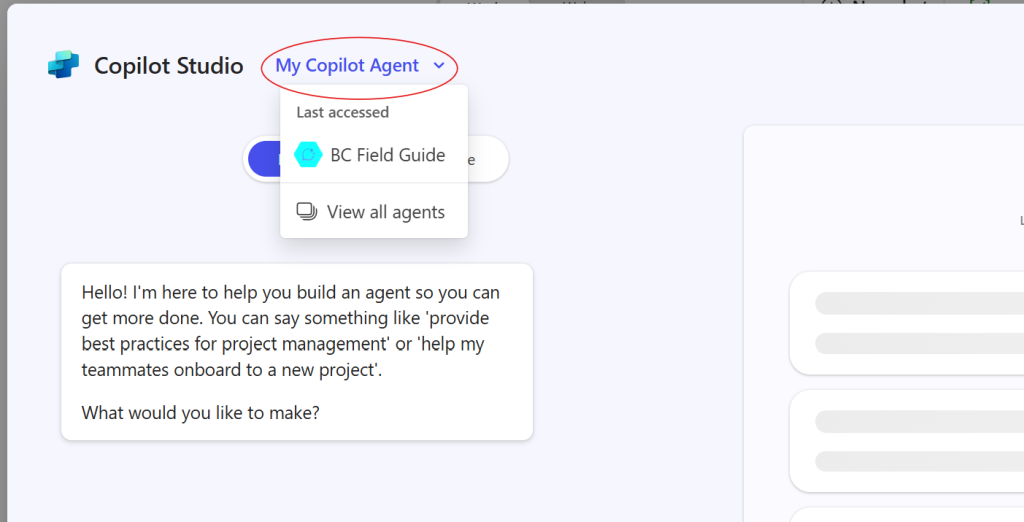
- UPDATED: Most importantly, you CANNOT edit or see this plugin Agent from the Copilot Studio website. The only way to edit it (at this time) is from inside the Copilot BizChat window by clicking on Create an Agent and then clicking the drop-down next to where it says "My Copilot Agent."
A few other things to note:
Your plugin Agent will not automatically appear in the M365 Copilot or Teams simply by publishing it from Copilot Studio. You will have the option to share it and / or Show it to everyone or select individuals in your organization (as shown in the screenshots below).
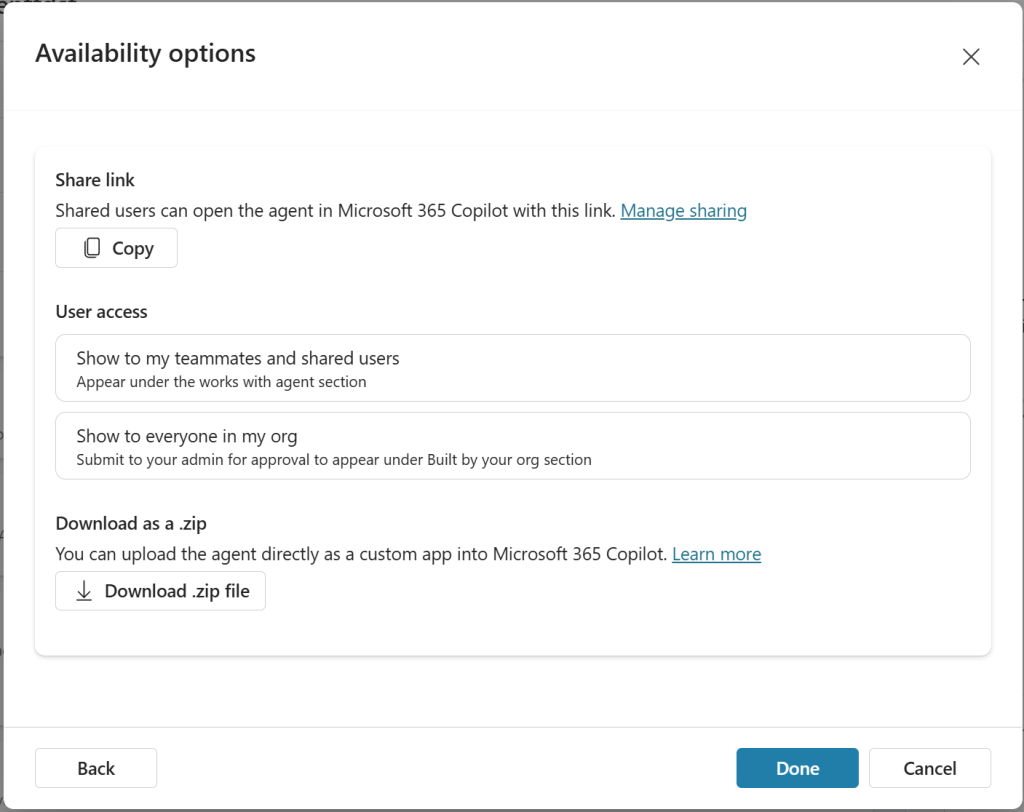
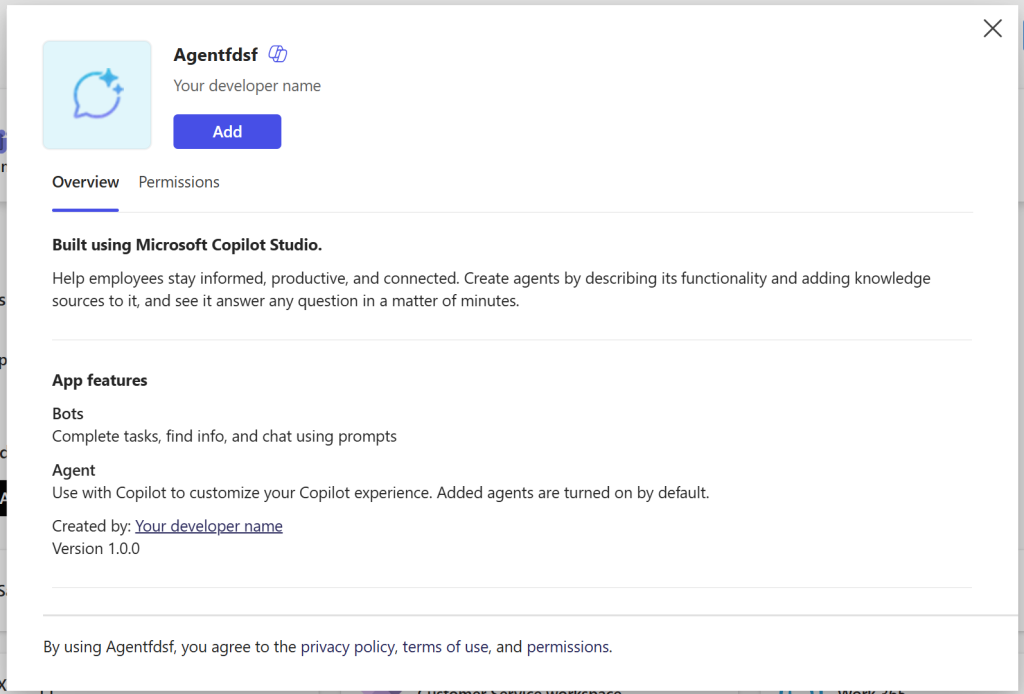
If you still do not see it after giving users access, click the Copy icon under Share link, and paste the URL in a browser window. This will force the plugin Agent to be added / installed, and it will then be available in M365 Copilot and Teams.
Now go forth and conquer!