Copilot Studio
 M365 Copilot
 Copilot Cowork
 Autopilots
 Governance
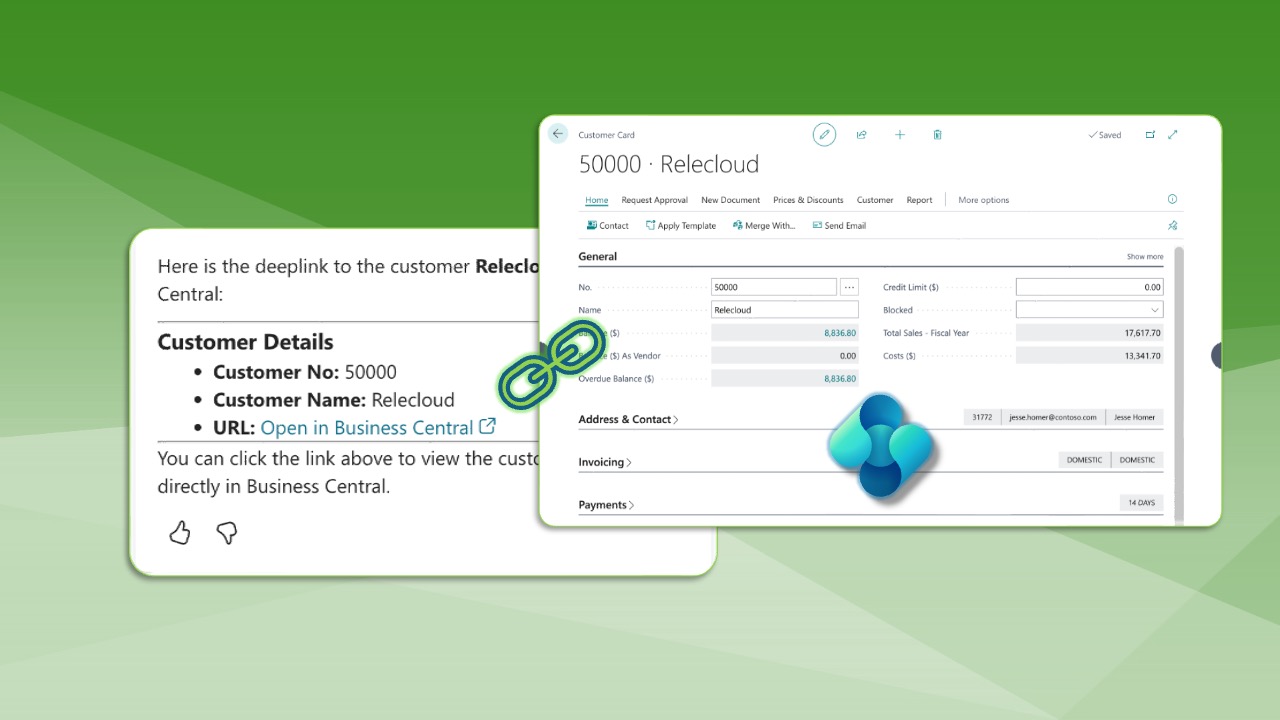
Creating Business Central deep links in Microsoft Copilot Studio can dramatically improve your AI agent's user experience. Imagine a scenario where users ask about a customer, vendor, or invoice record, and your agent not only provides the information but also delivers a direct link to that specific record in Dynamics 365 Business Central. This tutorial will show you exactly how to implement Business Central deep links in your Copilot Studio agents with a simple, step-by-step approach.
Why Business Central Deep Links Matter for Your AI Agent
When users interact with your Copilot Studio agent, they expect quick access to the information they need. By implementing Business Central deep links, you eliminate the need for users to manually search for records after receiving information from your agent. Instead, they can click directly through to the exact customer card, vendor profile, or invoice they're looking for. This seamless integration between Copilot Studio and Business Central creates a more efficient workflow and significantly enhances user satisfaction.
Watch the Full Tutorial as a Video
Lucky for you, we have the entire process available as a video and as an article. You can choose to watch, read, or do both!
Finding the Page ID in Business Central
The first step in creating Business Central deep links is identifying the page ID for the record type you want to link to. For this example, we'll focus on customer records and the customer card page.
Using the Page Inspection Tool
Business Central includes a built-in page inspection tool that reveals important technical details about any page you're viewing. To access this tool:
- Windows OS: Press Alt + Control + F1
- Mac OS: Press Option + Control + Fn + F1
When you open the page inspection tool while viewing a customer card, you'll see that the page ID is 21. Make note of this number as you'll need it when configuring your Get URL (v3) tool in Copilot Studio later in the process.
Essential Tools for Business Central Deep Links
To implement Business Central deep links in Copilot Studio, you'll need two primary tools. The specific tools you use will depend on your Business Central version.
Tool 1: Data Retrieval (MCP or Find One Record)
Your first tool retrieves record information from Business Central:
For Business Central version 27.1 or newer:
Use the Dynamics 365 Business Central MCP tool. This modern approach simplifies the configuration process and provides better integration capabilities. The MCP tool requires three configuration elements:
- Your Business Central environment name
- Your company name
- Your MCP server configuration name
See link for full tutorial on configuring the Business Central MCP Server and using it in Copilot Studio agents.
For Business Central version 27 or older:
Use the Find One Record connector for Business Central. While this method requires more manual configuration, it provides the same core functionality for retrieving record data.
See link for full tutorial on using the Find One Record tool.
Tool 2: Get URL for Business Central
The second essential tool is Get URL, which generates the actual Business Central deep links. You can find this tool by searching for "Get URL (v3)" in the Copilot Studio tools library.
The GetURL tool configuration requires several key parameters:
- Description: A clear explanation of what the tool does (e.g., "Generates a URL, also called a link, deep link, or bookmark to a customer record in Business Central")
- Environment name: Your Business Central environment
- Company name: Your Business Central company
- Page ID: The page ID you found using the page inspection tool (21 for customer cards)
- Row ID: Set to be dynamically filled with AI with the value of the systemId field for the desired customer record
Understanding systemId vs. Customer Number
One critical concept when working with Business Central deep links is the difference between Customer No. field and the systemId field. While users typically identify customers by their customer No., Business Central's API integration uses the systemId field for unique identification.
The systemId is a long alphanumeric GUID (Globally Unique Identifier) that you cannot easily determine manually. This is why you need the data retrieval tool (MCP or Find One Record) to first locate the record and extract its system ID before generating the Business Central deep links.
Creating the Manual Process (Without Instructions)
Before implementing automation, it's helpful to understand the manual process. Without special instructions in your agent, users would need to follow a multi-step process:
- First prompt: "I need to find the systemId for customer with the name Adatum Corporation"
- The agent retrieves and displays the systemId
- Second prompt: "With this systemId, can you show me a link to this customer record?"
- The agent runs the Get URL tool and provides the Business Central deep link
While this approach works, it creates unnecessary friction in the user experience. Users shouldn't need to understand technical concepts like systemId values or make multiple requests to accomplish a simple task.
Automating Business Central Deep Links with Instructions
The real power of Copilot Studio comes from creating intelligent instructions that automate the entire workflow. By adding specific instructions to your agent, you can reduce the multi-step process to a single user prompt.
Sample Agent Instructions
Here's an effective instruction set for automating Business Central deep links:
Trigger: "When a user asks to get a link to a customer record, invoke the process: View a Customer in Business Central"
Process Steps:
- Search for the BC customer using the designated tool. If the user has provided what looks like a customer name, assume it is a partial name and perform a "contains" type of search.
- From the search in step one, retrieve the systemId for the first customer located.
- Invoke the GetURL customer tool. The row ID in this tool should be populated with the systemId from step two.
- Show a detailed adaptive card style response with the customer number, name, and URL from step three.
Testing the Automated Workflow
With these instructions in place, users can now make a single, natural language request: "I need a deep link to customer Relecloud."
The agent automatically:
- Searches for the customer using the MCP or Find One Record tool
- Extracts the systemId from the search results
- Generates the Business Central deep link using the GetURL tool
- Presents a formatted response with the customer information and clickable link
When users click the link, they're taken directly to the specific customer record in Business Central, creating a seamless experience between the AI agent and the ERP system.
Best Practices for Business Central Deep Links
To maximize the value of Business Central deep links in your Copilot Studio agents, consider these best practices:
1. Include Deep Links in Standard Responses
Don't wait for users to specifically request a link. Whenever your agent provides information about a customer, vendor, or invoice, automatically include the Business Central deep link in the response. This proactive approach enhances the user experience without requiring users to know that the feature exists.
2. Use Adaptive Cards for Better Presentation
Format your responses using adaptive cards to create a professional, visually appealing presentation. Include the record name, number, and a clearly labeled link that users can easily identify and click.
3. Implement Partial Name Searching
Configure your search logic to handle partial names using a "contains" search rather than requiring exact matches. This makes the agent more forgiving of typos and variations in how users refer to records.
4. Extend to Multiple Record Types
Once you've successfully implemented Business Central deep links for customer records, replicate the process for other record types like vendors, items, and invoices. Each record type will have its own page ID, but the overall process remains the same.
5. Test with Real User Scenarios
Before deploying your agent to production, test it with realistic user queries. Try variations in how users might phrase their requests to ensure your instructions handle different scenarios appropriately.
Troubleshooting Common Issues
When implementing Business Central deep links, you may encounter a few common challenges:
SystemId Not Found
If the agent cannot retrieve a systemId, verify that your MCP tool or Find One Record connector is properly configured with the correct environment and company names. Also ensure that the user has appropriate permissions to access the records in Business Central.
Links Not Working
If generated links don't open the correct record, double-check that you're using the correct page ID. Use the page inspection tool to verify the page ID for each record type you're linking to.
Multiple Records Found
When a search returns multiple matching records, your instructions should specify which record to use (typically the first result) or prompt the user to provide more specific information to narrow down the search.
Conclusion: Enhancing User Experience with Business Central Deep Links
Implementing Business Central deep links in Copilot Studio represents a significant enhancement to your AI agent's capabilities. By combining the data retrieval power of the MCP or Find One Record tool with the URL generation capabilities of the GetURL tool, you create a seamless bridge between conversational AI and your ERP system.
The key to success lies in creating intelligent instructions that automate the entire workflow, eliminating the need for users to understand technical concepts or make multiple requests. When users can ask a simple question and receive both information and a direct link to the relevant Business Central record, you've created a truly integrated experience that saves time and improves productivity.
Start by implementing Business Central deep links for one record type, test thoroughly, and then expand to other record types as you become comfortable with the process. Your users will appreciate the enhanced functionality, and you'll have created a more powerful and useful AI agent for your organization.
Author and AI Assistance Disclosure
This article is based on my original YouTube video tutorial on Business Central Deep Links in Copilot Studio, which is linked in this article. I used AI to help turn the video transcript into a structured, edited article, but the techniques, examples, and recommendations are my own and reflect my personal experience building Copilot Studio agents.
Recommended Reading
If you liked this post, here are some other posts that you are sure to enjoy!