Copilot Studio
 M365 Copilot
 Copilot Cowork
 Autopilots
 Governance
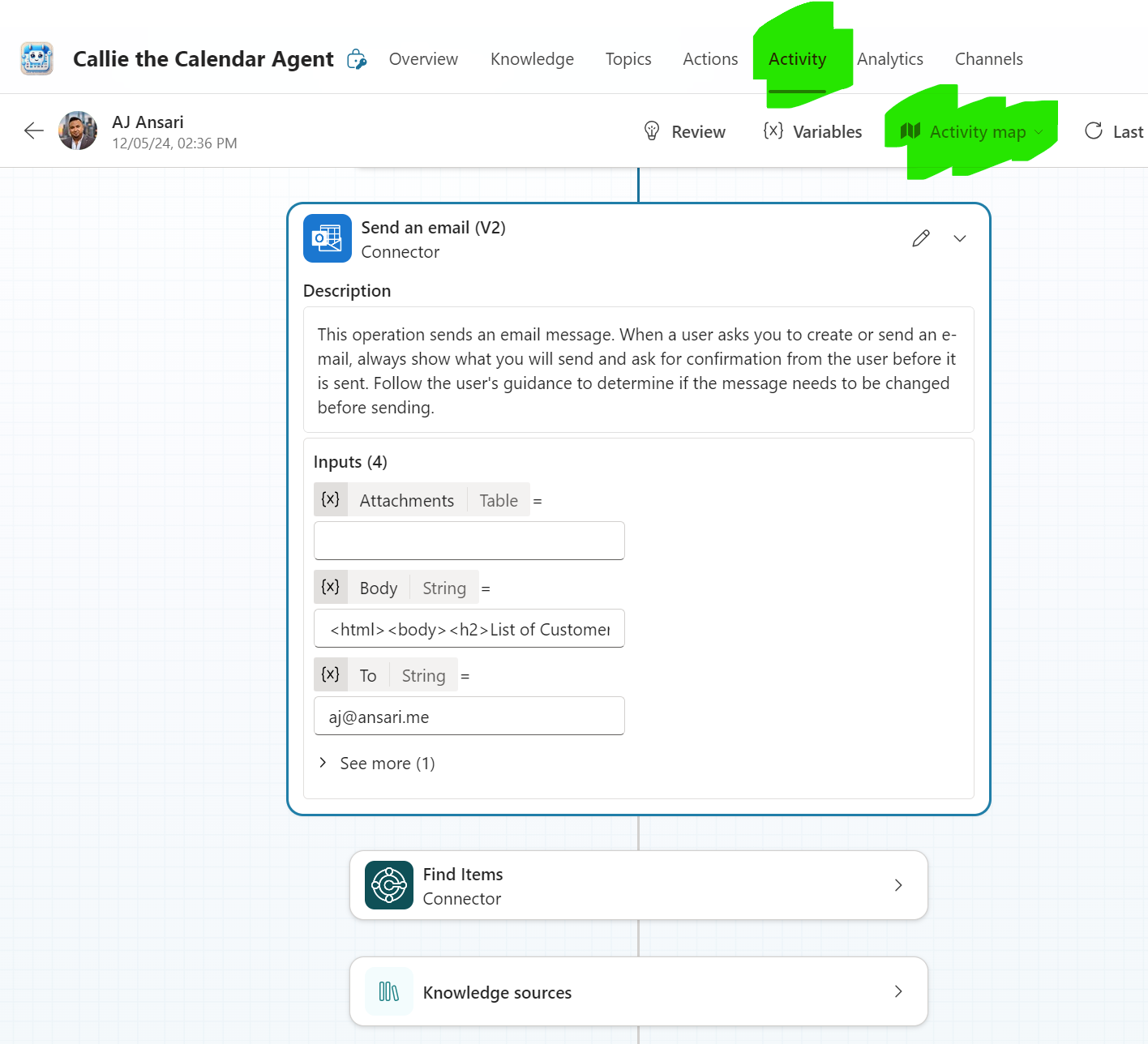
When it comes to Copilot Studio in the fall / winter of 2024, all everyone wants to talk about is autonomous agents, powered by triggers, smarter actions and an upgrade to GPT-4o. But without much fanfare, we also got a new top-level menu item called Activity.
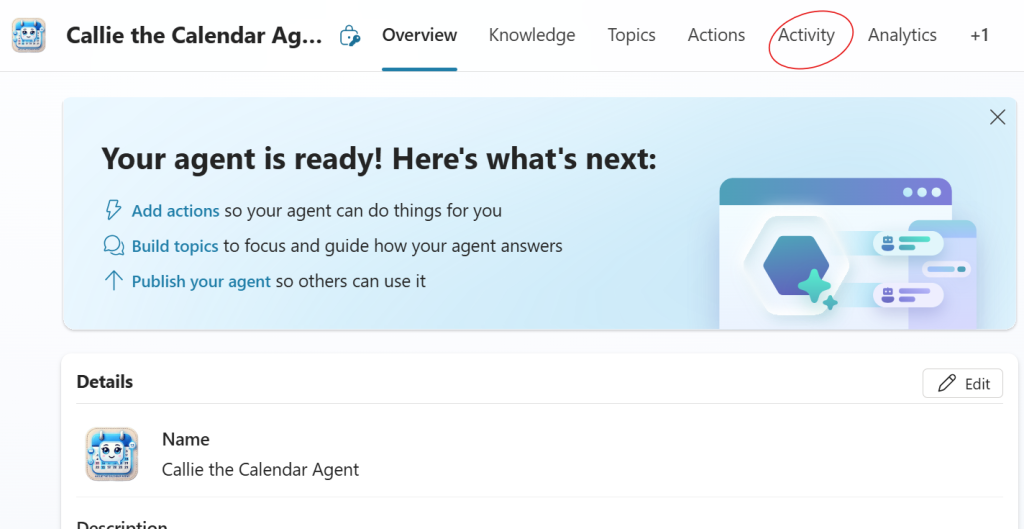
So what does Activities do and why should you care?
Let's go back to a time before we had Activities. When you tested your Copilot (yes, those prehistoric days before we had Agents.. when people lived in caves, dressed in loincloth and used Topics with Classic orchestration to build their conversation "AI" copilots), all your prompts and the copilot's responses went bye-bye when you clicked the refresh icon in the "Test your Copilot" area.
It's possible that you may have been able to find it somewhere in the nether-lands of Power Platform Admin Center, but there was no easy way to trace back a conversation, or the behavior it triggered (which action it called, what variables were filled, etc.).
In the context of Topics, while you were testing your copilot, you could see which Topic and node/step was being called. But refreshing the "Test your Copilot" chat would flush all of that information down the digital drain. This made it very difficult to go back and debug or trace back historical behavior if you wanted to recreate the issue.
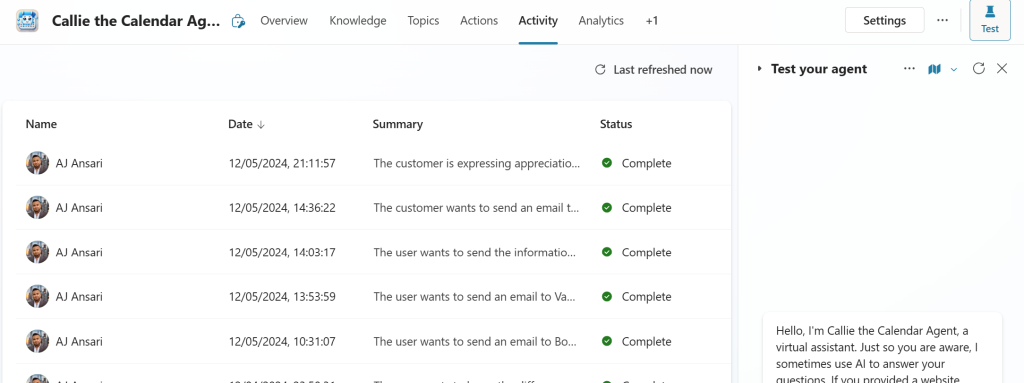
This is where Activity comes to the rescue. You are first shown an entire list of sessions with date and time stamps, a summary and status (Complete, In Progress, Created). When you click on a particular session or activity of interest, you are shown an Activity Map which displays which Actions, Topics or Knowledge sources were called, what variables were populated, matches found, etc.
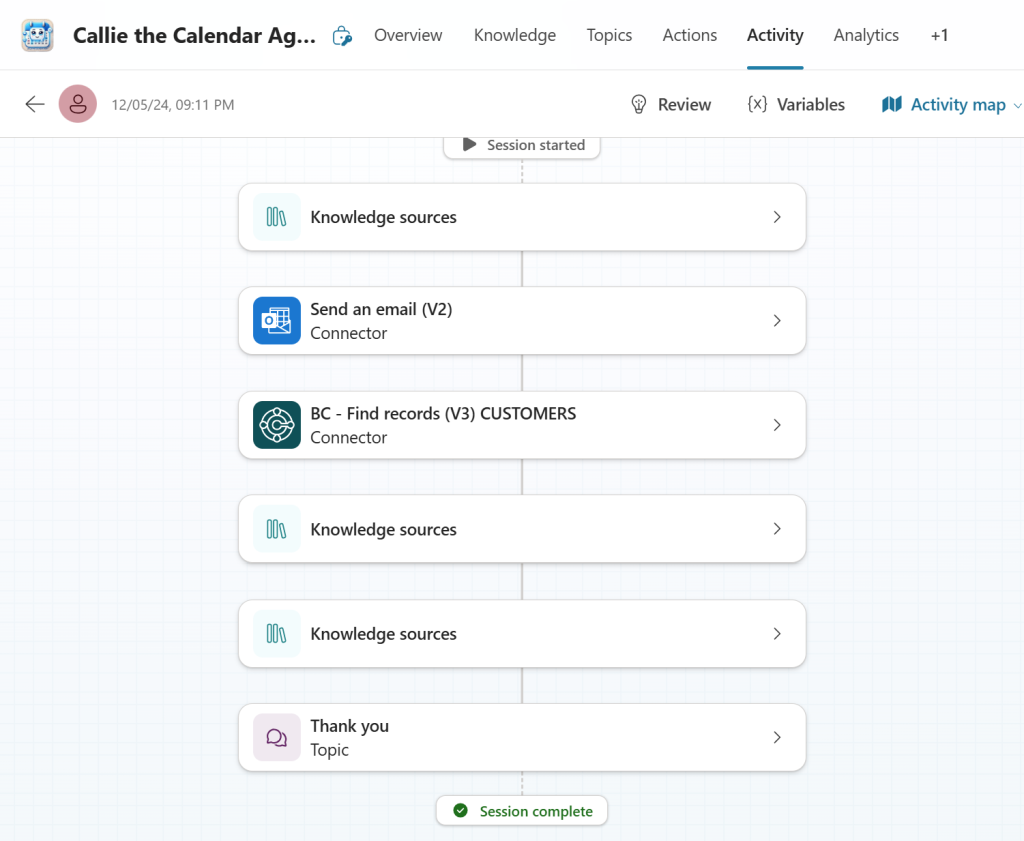
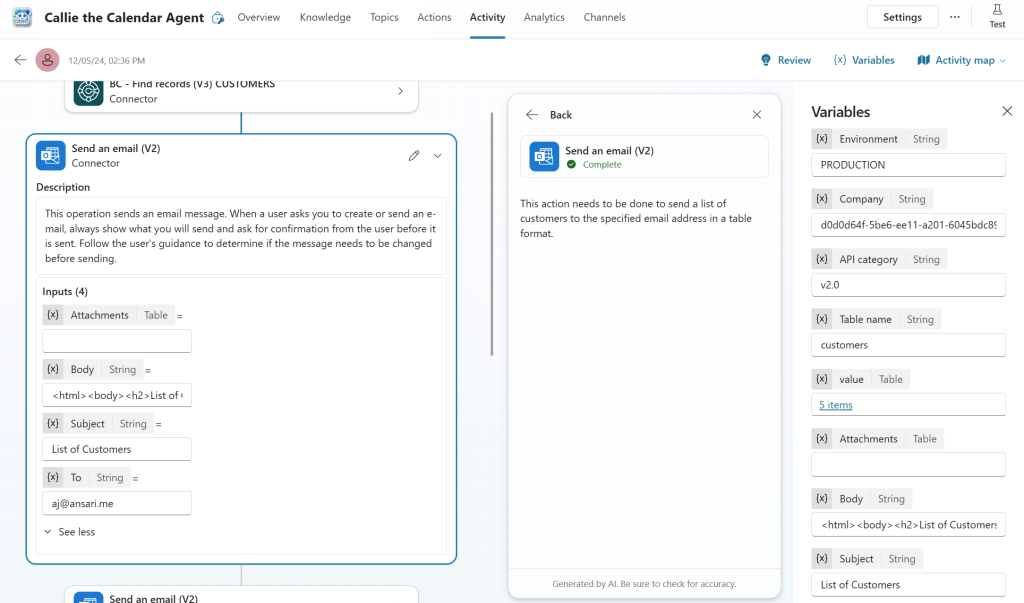
Clicking on a node will show you relevant information that the inputs that were filled, outputs received, and some information about the Action / connector / Knowledge source / Topic. You can also review what was supposed to happen with that connector and a full dump of relevant variables.
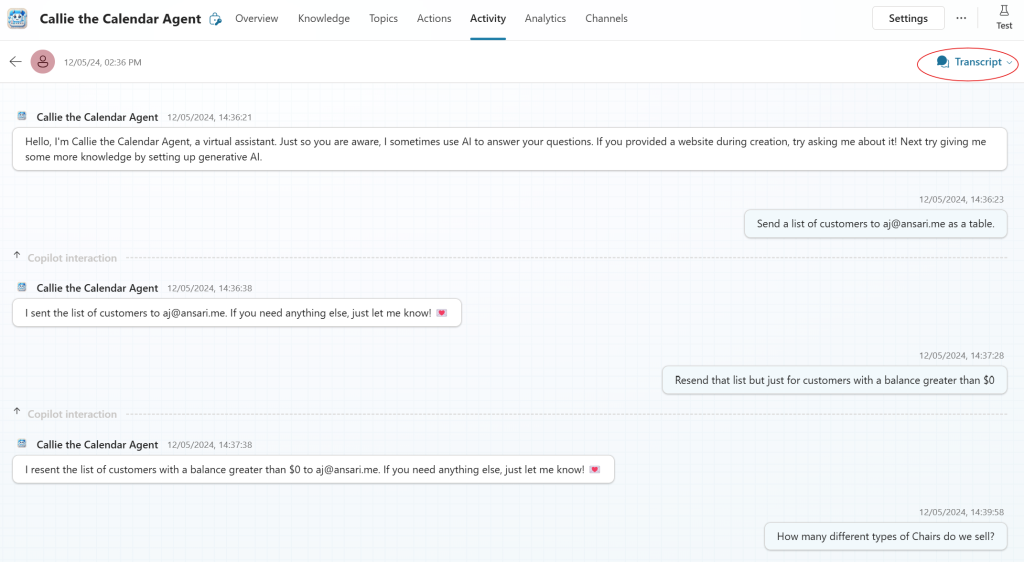
But what I love even more than that is that you can also view the full transcript of the user's prompt and the Agent's responses associated with that session or activity. To get to that screen, simply click on the "Activity Map" near the top-right of your window and select "Transcript" from the drop-down.
A final note: Activity will not log any responses that are answered from the Agent's own General Knowledge.
Now isn't that cool?! Yep, I sure think so.