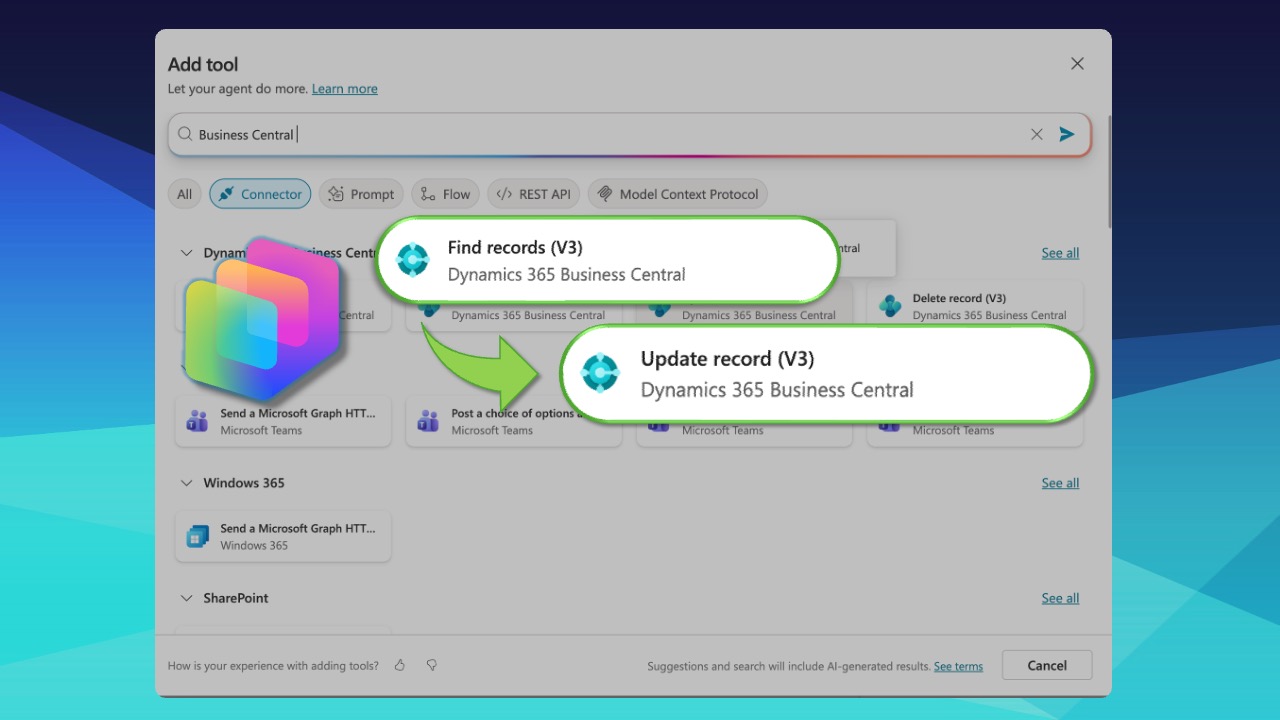
Here's a challenge you've probably run into: you're building a Copilot Studio agent, everything seems straightforward, and then you need to update a record in Business Central. Simple enough, right? Add the Update Record (V3) tool and just tell the system which record to change and what the new values should be.
Except it's not that simple. Because Business Central doesn't work with the customer names or numbers you see on screen. It works with something called a System ID, and if you don't understand how that fits into the workflow, your updates are going to fail or hit the wrong records entirely.
Let me walk you through how this actually works. You can either watch the full video tutorial or continue reading below.
Watch the Full Tutorial As A Video
Why System IDs Matter When You Update Business Central Records
Every record in Business Central has a unique identifier called a systemId. It's an alphanumeric GUID that lives in the database, invisible to users in the interface. You won't see it when you're clicking through customer cards or browsing vendor lists. But it's there, and when you're working API pages, the Business Central Power Platform connector or the Business Central MCP Server, it's how a record is uniquely identified, whether you're trying to find it, update it or delete it.
This concept is not alien. In AL code and in the Business Central UI, we know of something called the Primary Key: often one, but sometimes a combination of fields which uniquely identify a record. On the Customer table, it's the No. field. On the Sales Header table, it's the Document No. and Document Type field.
Why do primary keys or systemId matter? Because two customers or contacts can have the same name. You can have a Sale Quote and an Sales Order with the same number. Display values can change. But not a primary key or systemId? It never changes, and it's always unique.
And when you're automating processes in Copilot Studio, the systemId is what matters the most so your agent knows exactly which record you intend to perform a CRUD operation on.
So the question becomes: how do you get that systemId in the first place?
The Two-Step Workflow: Find First, Then Update
This is where most people get tripped up. You can't just jump straight to the Update Record (V3) tool and hope for the best. You need a two-step process.
Step one: Find the record you want to update and retrieve its systemId.
Step two: Use that systemId with the Update Record tool to make your changes.
Think of it like looking someone up in a directory before you call them. You wouldn't just dial random numbers hoping to reach the right person. Same principle here.
Choosing the Right Tool to Find Your Records
Copilot Studio gives you two options for finding records in Business Central: "find one record" and "find records."
The "find one record" tool is useful when you know exactly what you're looking for and you want a single, precise result. But in real-world scenarios, you often don't have perfect information. Maybe you only remember part of a customer's name. Maybe you're searching across multiple records that share similar attributes.
That's where "find records" becomes invaluable. It lets you search with partial matches and flexible filters. If I type "Alpine" into a search, it can find "Alpine Ski House" even though I didn't provide the full name. You can use OData filter syntax to build sophisticated queries that return exactly what you need, and then choose which record to work with from the results.
This flexibility is critical when you're building agents that need to handle real user interactions, where inputs are rarely perfect or complete.
Pro tip: If your search returns multiple records, your agent can present the options to the user and let them choose. This turns potential ambiguity into a better user experience.
Update Record (V3): The Tool That Does The Heavy Lifting
Once you have the systemId, the Update Record V3 tool becomes straightforward. You pass it the systemId, specify which fields you want to change, and provide the new values. Behind the scenes, it connects directly to Business Central through the standard connector (i.e., the Power Platform Connector) or the Business Central MCP Server tool and makes the change.
And this way, you can enable an agent to update records in Business Central without having to go through the UI.
In the tutorial video, I demonstrate this by updating customer credit limits. The process is clean: find the customer record, grab the systemId, pass it to the update tool along with the new credit limit value, and you're done. Quick, Easy, Precise.
Why Process Instructions Are Non-Negotiable
Here's something I learned the hard way: you cannot rely on AI models to always plan the correct sequence of actions on their own. Sometimes they will. Sometimes they won't. And "sometimes" is not good enough when you're building production systems.
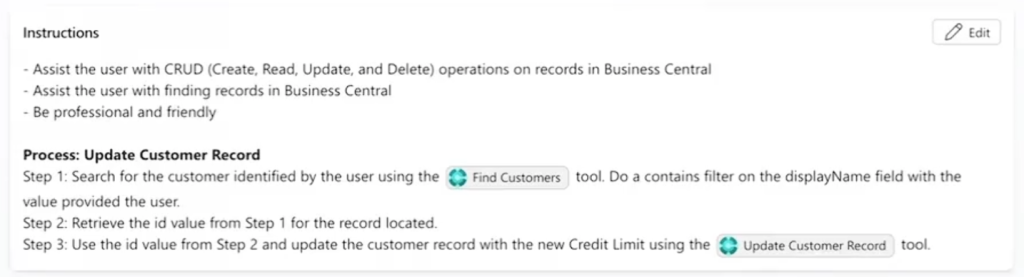
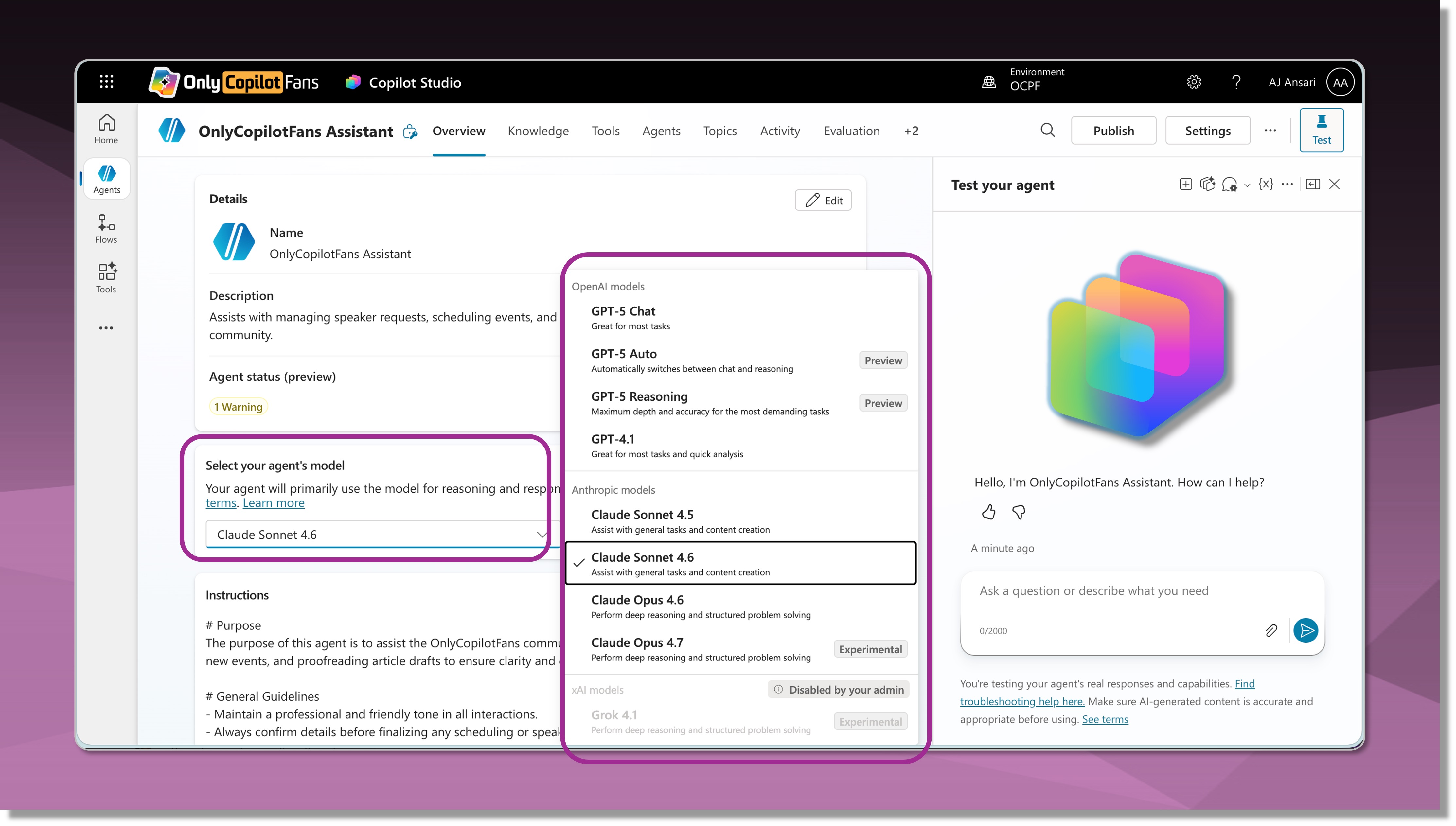
That's why you need to write explicit process instructions. Tell your Copilot Studio agent exactly what to do: first use the find tool, then use the update tool. Spell it out step by step. This ensures consistency regardless of which AI model is running under the hood or how the user phrases their request.
Think of process instructions as guardrails. They keep your automation on track even when conditions change.
For reference, here is an example of the process instructions I wrote to teach my agent how to update records:
Screenshot of Process Instructions for Updating a Business Central Customer Record
A Quick Word About the Business Central MCP Tool
I mentioned this in the video, and it's worth noting here: if you're doing more advanced work with Business Central integrations, you should look into the Business Central MCP tool. It can handle both the find and update steps through a single connection, which simplifies your architecture in some scenarios.
I've done a separate deep dive on that tool, and it's worth exploring if you're building more complex workflows. But for most use cases, the standard connector approach I've outlined here will serve you well.
The Bottom Line
Updating records in Business Central through Copilot Studio isn't complicated once you understand the System ID requirement and embrace the two-step workflow. Find the record, get the System ID, update the record. Build that pattern into your process instructions, and you'll have a reliable, repeatable automation that your users can trust.
The same process is required when you're looking to delete a record, get a deep-link URL for a record and for many other Business Central integration scenarios in Copilot Studio.
Author and AI Assistance Disclosure
This article is based on my original YouTube video tutorial on Business Central Deep Links in Copilot Studio, which is linked in this article. I used AI to help turn the video transcript into a structured, edited article, but the techniques, examples, and recommendations are my own and reflect my personal experience building Copilot Studio agents.
Recommended Reading
If you liked this post, here are some other posts that you are sure to enjoy!
Tags:Copilot StudioAutomation
Share:
Written by
AJ Ansari
AJ is a Microsoft MVP (Copilot Studio and Business Central), creator of the AI Clarity Method, and COO at DSWi.
 Copilot Studio
 M365 Copilot
 Copilot Cowork
 Autopilots
 Governance