Copilot Studio
 M365 Copilot
 Copilot Cowork
 Autopilots
 Governance
For as long as I've been creating Copilots, I've leveraged the power of Copilot Studio Actions to launch Power Automate flows or work with the many built-in connectors inside Copilot Studio. But for a very long time, I was making one crucial mistake that kept me from getting the most out of my Copilots: I was creating my Actions inside my Topics.
While fundamentally there is nothing wrong with what I was doing, what I didn't realize is that I was treating – and talking to – my Copilot like it was a 5 year old when in fact it was as smart as a PhD candidate.
When you create a Copilot Studio Action (which calls a Power Automate Flow or a Connector) inside a Topic, you have to map each input to some variable collected from the conversation with the user. This requires creating one or more question nodes, determining the best Entity types to use for extraction, and then mapping outputs to another variable and using them in a message node, etc. Essentially, while it's perfectly functional, it's a very rigid process that can add more time to the Copilot creation process.
What I should have done instead is create standalone Actions inside the Copilot and enabled Generative mode from the Settings menu of the Copilot (the default option is Classic).
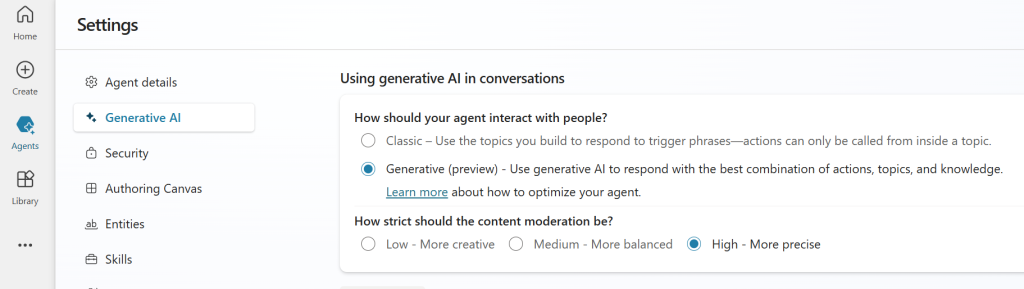
When Generative mode (which is still a Preview feature) is enabled, generative AI is used to automatically call the best Action (without needing a Topic to trigger it) based on the user's prompts. What makes this a thing of beauty is that you don't even need to extract Entities from the user's responses and map them to inputs for the Action. If you do need to manually map a value to an input, you can do so, but this is the exception and not the norm. You also don't need to map outputs to messages. It seamlessly takes information provided in a conversation and intelligently extracts and maps the right information to the right inputs. When some information is missing, it automatically prompts the user for it without you having to create another question node in a topic. The outputs are also automatically created and feel more natural and conversational. All I would need to do as the author is populate meaningful Descriptions for each input and for the Action itself. This helps generative AI understand what the Action is for and what type of information is required for each input parameter.
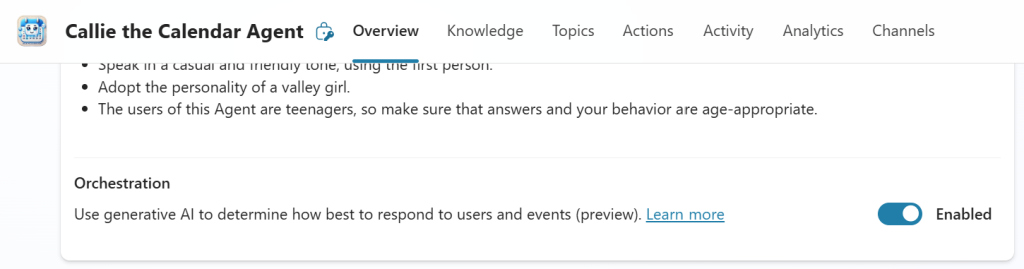
This functionality has been there for quite some time, but it got yet another boost at Ignite 2024 with the addition of an Orchestration flag on the Overview page of your Copilot Agent. Enabling the orchestration flag (also a Preview feature) makes the Agent even smarter by giving it the ability to intelligently determine how to handle user responses and events, which is a fundamental building block for making autonomous Agents. In a future post, I'll explain how this setting, in conjunction with Triggers can help turn your Agent from just another dude to 007.
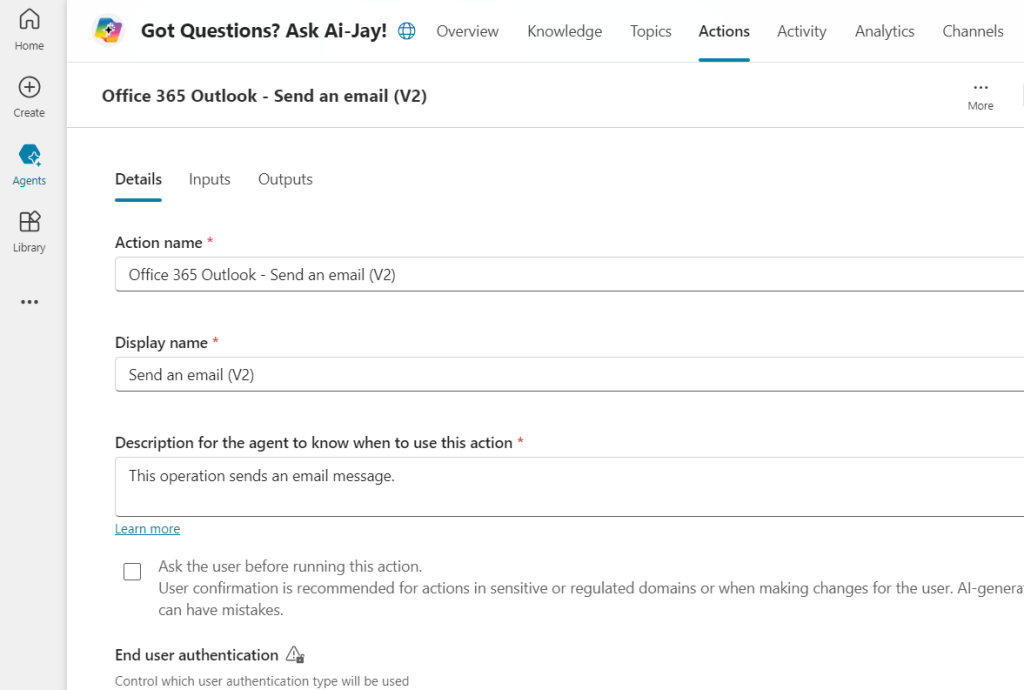
A final thought: Does this mean you should just forget about Topics altogether? No! Topics can be a very powerful tool in your toolbox; the point of this post is that Topics are not the be-all end-all feature, and not everything needs to be a Topic. There will definitely be situations where you'll not only need to create a Topic, but you'll also want to call a Copilot Studio Action from within the Topic. A good example of this is when you need to capture a lot of information to send to an Action and doing it in a conversational manner just isn't practical. Here, you can create an Adaptive card to quickly and accurately capture all the information needed. And the values captured here can be manually mapped to inputs of the Action, and so on.
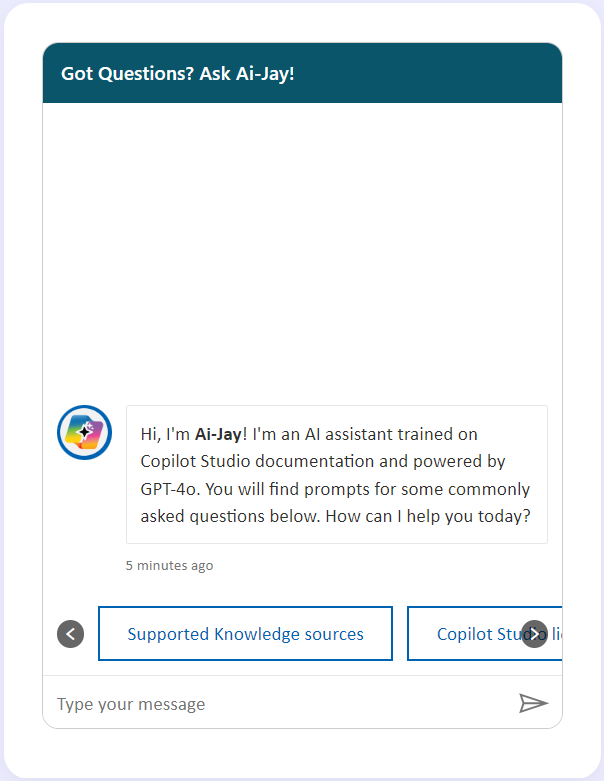
Try it out and let me know how it works out for your next project! If you're looking for step-by-step instructions, you can always ask Ai-Jay, our friendly copilot built right into every page of OnlyCopilotFans.com. You can also find details on Microsoft Learn.
PS, here are some great skills you can add to your Agent in addition to using Actions to elevate your users' experience.
Note from AJ: As of November 2024, the Copilot Studio UI was updated to replace all references of Copilot with Agent. But since this article is written in the context of what I was doing in the past, I've intentionally used the term Copilots instead of Agents.