Copilot Studio
 M365 Copilot
 Copilot Cowork
 Autopilots
 Governance

With so many new features announced for Copilot Studio over the past few weeks, it can be hard to keep up with all of them. One new and very significant feature that's snuck into Preview environments of Copilot Studio without any hoopla is Web Search, the ability for your Custom Engine agent to access real-time latest and greatest information from the internet to answer questions.
How Does it Work?
This feature, when enabled from the Knowledge area of the Overview page of your agent in Copilot Studio, will give your agent the ability to search the internet for answers when your predefined knowledge sources and your agent's general knowledge (if enabled) do not yield an answer. The feature is disabled by default.
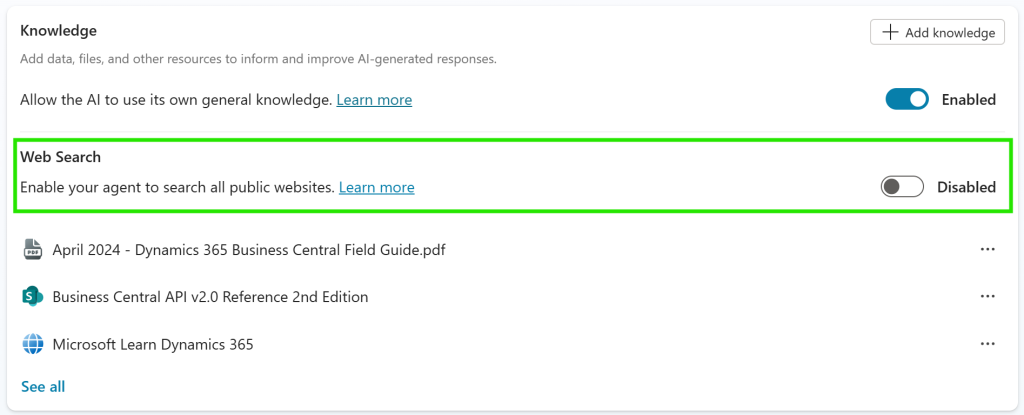
It will work a lot like how conversational AI services like Microsoft 365 Copilot, ChatGPT, etc.
When you ask one of these AI services a question, it gets your answer one of two ways:
- The knowledge it has from what the underlying foundational model (LLM)'s training, up to the training cutoff date. Open AI's popular models like GPT-4o, GPT-4.5, o1, o1-mini, o3, and o3-mini all share a training cutoff date of October 2023. Google's Gemini 2.0 Flash's training cutoff date is June 2024, while it's Gemini 2.0 Flash-Lite's training cutoff date is January 2025. Anthropic's Claude 3.7 Sonnet's training cutoff date is November 2024. If you ask a question about an event that happened after the model's training cutoff date, it will not know the answer. For example, none of these models would know who won Super Bowl LIX on February 9, 2025.
- And yet, most of these popular AI services will be able to tell you that the Eagles beat the Chiefs handily to win the Super Bowl this year. This is because these AI services are also able to use Web Search to answer your question when the model doesn't have an answer or when you specifically ask it to.
With ChatGPT, when you build a custom agent you can choose to allow or block web search as a source of answers.
Copilot Studio, on the other hand, only generated answers that were grounded on knowledge sources specified by the maker, and general knowledge (if enabled). At the time of this article's writing, the general knowledge of your Copilot Studio agent is based on OpenAI's GPT-4o model.
Is this a Good Thing?
It depends. It's always good to have the option, so from that perspective, it's a fantastic new addition. It eliminates a limitation and gives makers greater freedom.
But from an organizational standpoint, it would still be wise to leave that Web Search feature disabled. Answers from the web are not always correct and your agent cannot validate its veracity. There are many examples of inaccurate or downright false information that is surfaced by search engines, and as an organization, you will have no editorial control over the information returned from an open web search. This can open the door for embarrassment or even liability for the organization.
As a general rule, whether an organization is deploying an AI agent for an internal or an external audience, it is a wise idea to have that agent answer questions only from validated data and trusted / vetted sourced.
Wait… Didn't we Already Have something like that?
Good question! Prior to the addition of this feature, Custom Engine Agents had the ability to add specific Public Websites (up to two levels deep; unlimited websites in generative mode, and up to 4 in classic mode).
Within Topics, you could also specifically point to a Custom Bing Search which would allow you to connect to your Custom Bing Search account and search from a collection of Bing indexed websites that you handpicked. The websites could be ranked in a desired order to ensure how results were prioritized. Like Public Websites, these also only supported URLs that were up to two levels deep.
This allows an organization to obtain answers from the web, while ensuring that only trusted and vetted web sources are being used for answers.
Interestingly, web search ability has been available in Declarative Agents built with Copilot Studio Builder for personal use, but not for Custom Engine Agents.
Remind me, What's are Custom Engine Agents and Declarative Agents?
For the uninitiated, you can build a few different types of agents with Copilot Studio.
Custom Engine Agents
These are standalone agents built with Copilot Studio by a maker for organizational use that can be deployed across any of Copilot Studio's supported channels, such as Teams, Microsoft 365, Slack, Facebook, your website and more.
Declarative Agents
These are agents built with Copilot Studio by a maker for organizational use but are specifically designed to be deployed in Microsoft 365 Copilot Chat (and Teams).
Declarative Agents (personal) built with Agent Builder
These are similar to the previous category of Declarative Agents in that they are also designed specifically for deployment in Microsoft 365 Copilot Chat but with two main differences:
- Where they're built: Unlike the previous agents, these are not built in Copilot Studio. These are built right from the Microsoft 365 Copilot Chat (Work) experience by clicking the Create Agent action. This launches a limited version of Copilot Studio called Agent Builder.
- Who builds them: These agents are built by individual users for their personal use and not by a maker at an organizational level. The user can choose to share them with others in the organization, but primarily it is a tool for users to enhance their own Microsoft 365 Copilot experience. As a consequence, these agents cannot be found or managed by the organization from Copilot Studio. Any changes that need to be made must be made by the original creator from Agent Builder.
If you want to learn more about building Declarative Agents, check out this OnlyCopilotFans article.
I'm not seeing it in my Copilot Studio Environments!
At the time of this writing, the feature is only available in Preview environments of Copilot Studio. An easy way to tell if your environment is a preview environment is to look at the URL in the address bar. Preview environments start with https://copilotstudio.preview.microsoft.com/….
If you want to learn more about Knowledge Sources supported by Copilot Studio, check out this Microsoft Learn documentation page. What do you think about this feature? We'd love to hear your thoughts.