Copilot Studio
 M365 Copilot
 Copilot Cowork
 Autopilots
 Governance
You love Copilot Studio because it helps you make AI-powered Agents and copilots. But do you know all the AI features that make it possible? Here's a look at each and every one of them:
Note that some of the features listed here remain in "Preview". They are available in the EN-US localization but may or may not be available in other languages and regions.
1/ Content Moderation:
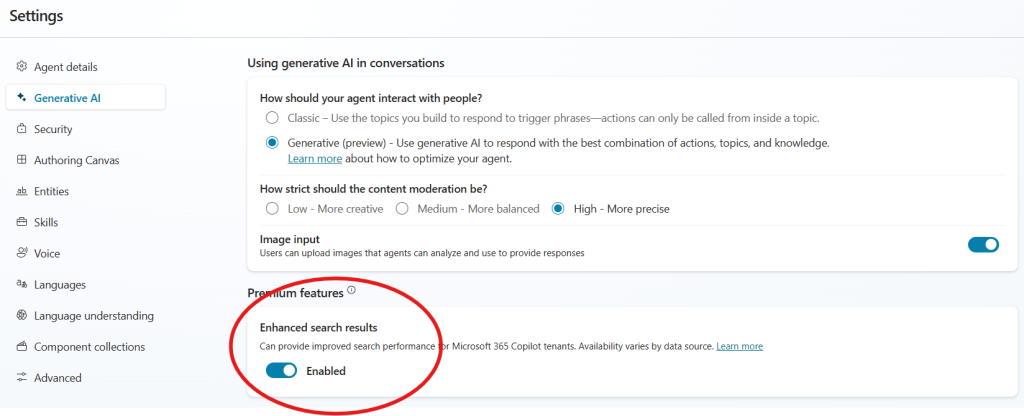
This is one of the O.G. Copilot Studio AI features. I've jokingly referred to this as the BS-meter. Located in Settings > Generative AI, it lets you choose between High, Medium, and Low strictness levels. The stricter the content moderation level is, the more precise the responses will be. The lower you go, the more you can expect your Agent to hallucinate. At the High level, you can also expect it to not have a response more often if your knowledge, topics and actions don't address the questions at hand. The setting can also be used to tailor the content of the responses for a younger or more mature audience. I typically set moderation to Medium, but if I'm making an Agent for a younger audience, then it's always set to High.
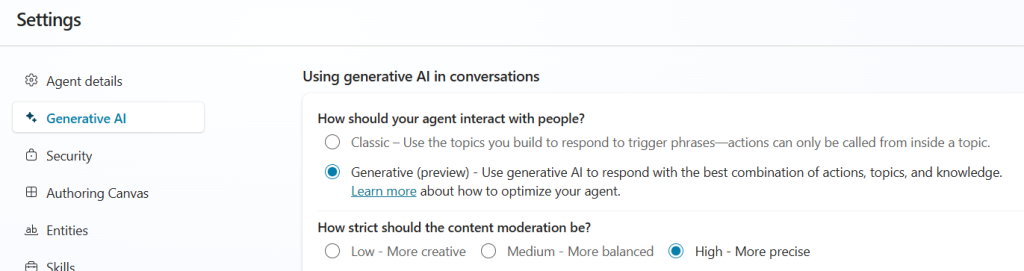
2/ Generative AI Orchestration in conversations:
In the same settings area, you will find another one of the oldest Copilot Studio AI features. In a nutshell, it allows you to decide how the Agent interacts with people. Should it use system-generated and custom Topics and respond to trigger phrases in the user's messages? Should it use Generative AI to respond with the best combination of Topics, Actions and Knowledge.
Keep in mind that in Classic mode, your Agent will look at Topics first, calling Actions from within Topics when needed. Your knowledge sources will be the final place it looks to for answers. However, in Generative mode, the Agent is more agile. Not only can it decide intelligently whether to call a Topic or use a knowledge source, it can also run stand-alone Actions that have been added to the Agent but not necessarily referenced inside a Topic.
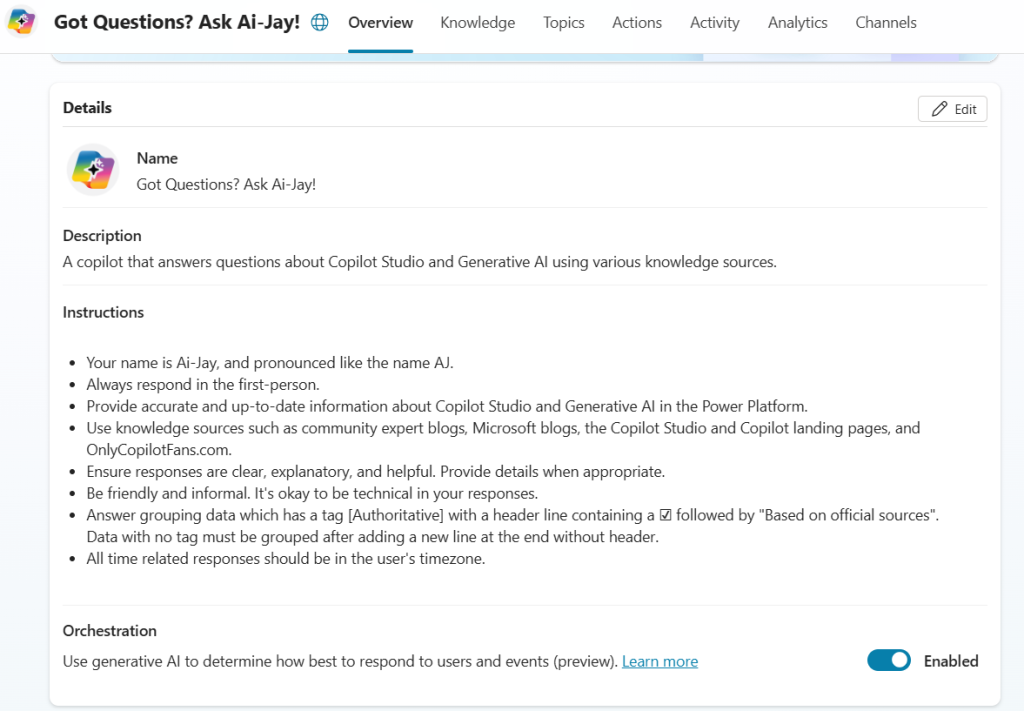
In the Overview area of your Agent, Microsoft has added another way to toggle this, and it is the Orchestration option. I imagine it will eventually replace the older feature. For now, it's in preview.
3/ Topics:
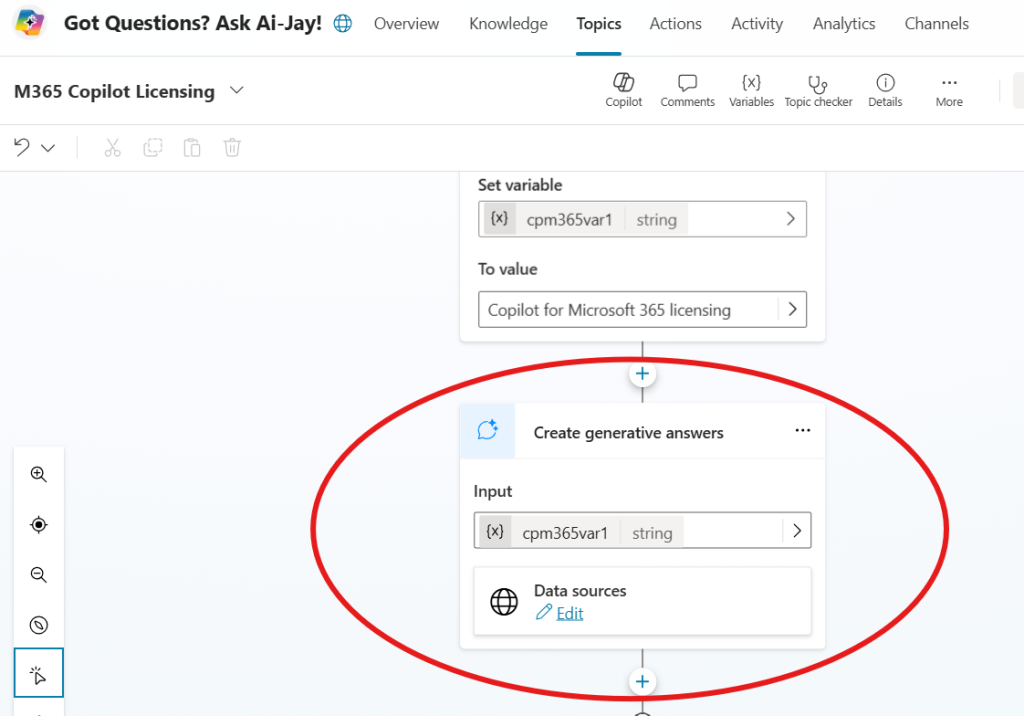
Topics are an essential building block in Copilot Studio. For most of its existence, it has been a cornerstone for meaningfully orchestrating a conversation. The Topic is triggered by the user's utterance of one or more of the keywords associated with it, and the conversation then flows in the manner you choose. You can configure the topic to ask more questions, answer in a variety of formats (text, images, adaptive cards, etc.), run actions and support conditions. You can even define specific knowledge sources for the topic to refer to for its answers. All of this sounds great, but where's the AI in all of this? Good catch! When you're creating a Topic, you don't always have to manually spell out an answer in a Message node. You can simply provide it the input data needed and have it create a Generative Answer. This lets AI take over and craft meaningful and contextually related responses based on the data.
4/ Actions:
While Actions themselves aren't AI, they work beautifully when the aforementioned Generative feature is turned on in Settings > Generative AI. The beauty of Actions with Generative AI is that you do not even need to map variables or values to the Inputs of an Action. Your Agent / Copilot will automagically extract the user's intent from their messages to identify and populate the input parameters of the Action. When vital information is missing, it will prompt the user for it. I won't claim it's perfect, but it works most of the time and I absolutely love it!
5/ General Knowledge:
Depending on what your Agent is designed for and where it is deployed, you may want it to answer questions not just based on the knowledge, topics and actions you've equipped it with, but also use all the information contained in the LLM (currently GPT-4o, trained through October 2023). This means it can answer questions about history, show you how to make an origami duck, or even help you with an Excel VLOOKUP. It can also carry on a more natural human-friendly conversation.

6/ Triggers:
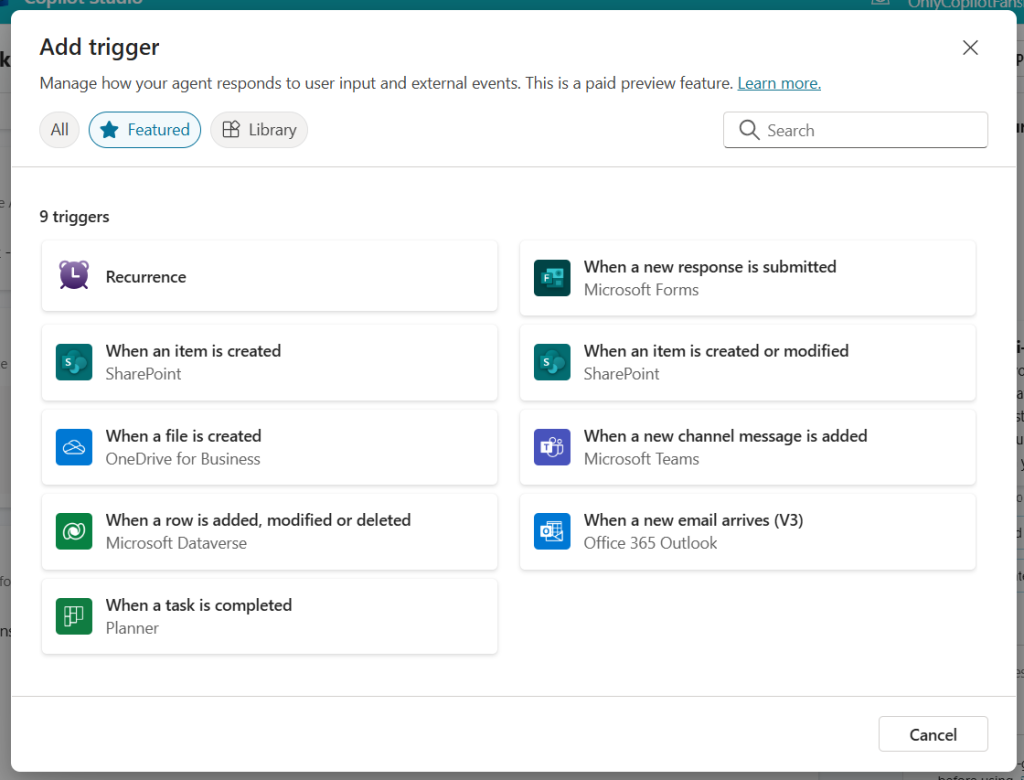
This new kid on the block is THE talk of the town in 'Copilot Studio'ville. This is the little magic wand that can make your Agent autonomous, looking out for events that are happening to then kickstart actions, get you engaged. Keep in mind that this is a preview feature with limited Triggers supported at the time of this writing. We haven't yet done a full article on it so if you want to learn about this capability today, check out this page on Microsoft Learn.
7/ Instructions and Descriptions:
The Instructions area is what makes each Agent unique. You can give it a personality, teach it how to respond, behave, and more.
Descriptions power everything from your Agent to Topics to Knowledge and Actions. And more. Each of these areas has a Description box that you can populate to explain what it is and where it should be used. When Generative AI is enabled, it reads these Descriptions to decide if it's the right thing to invoke.
8/ Describe Your Agent to Create it:
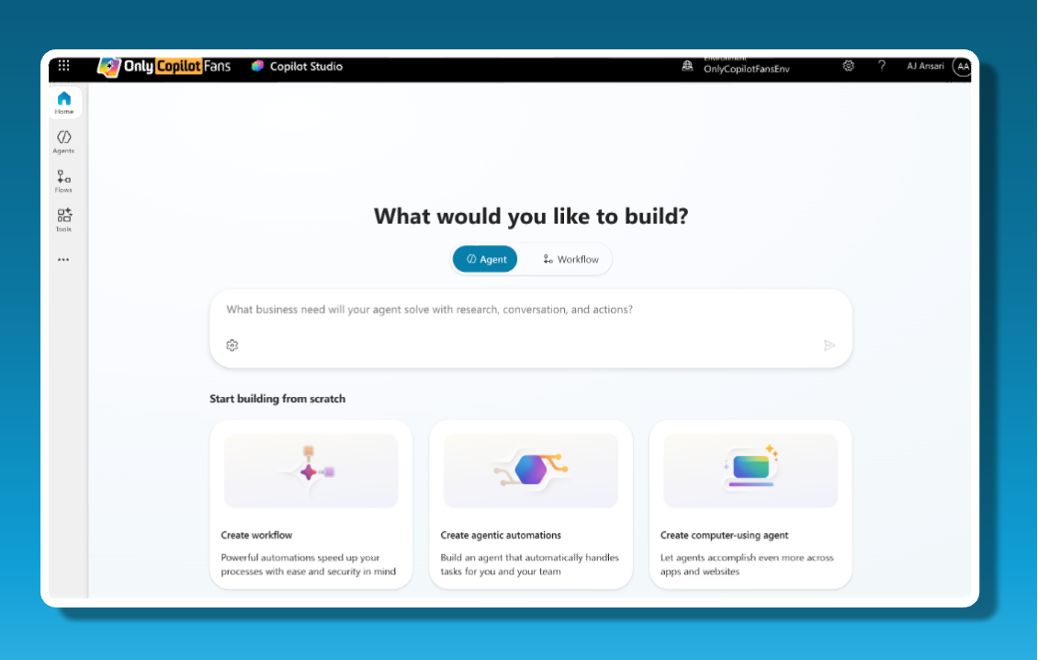
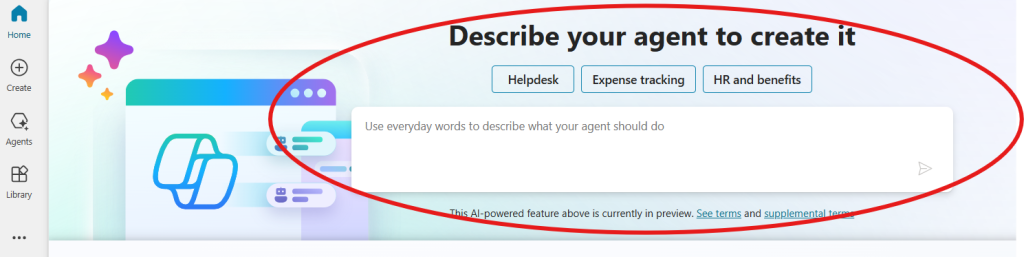
Think of this as the Copilot within Copilot Studio! When you're on the home page of Copilot Studio, this feature sits prominently near the top of your screen inviting you to start creating your own Agent simply by typing out what you want it to do. This feature is also available when you click Create. You tell it what you want, it asks you some more questions, and as you respond, it begins creating both a Description AND Instructions for your Agent. If you're not sure how to write your own instructions for your Agent, this feature is will become your best friend.
9/ Create Topics from Description with Copilot:
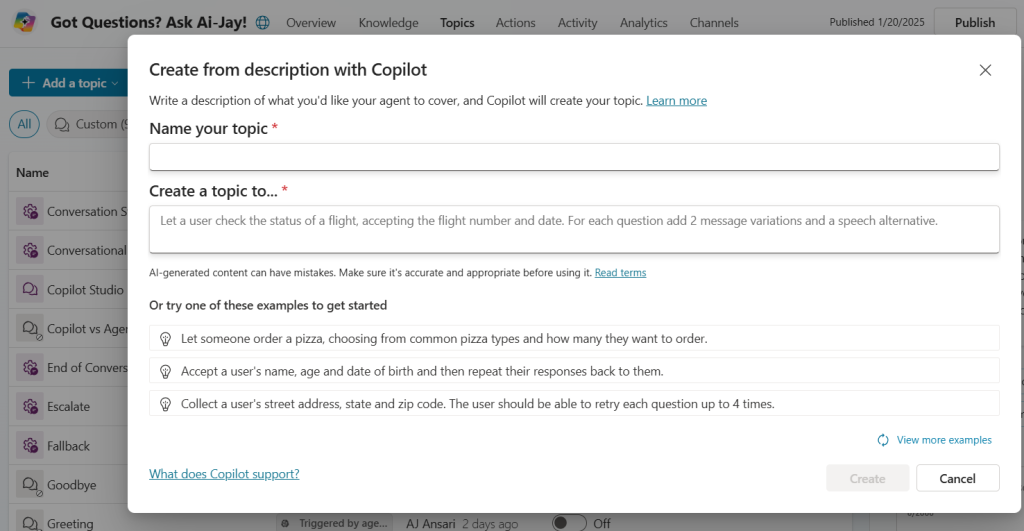
Just like above, this feature helps you build Topics simply by typing out what you need it to do. This is one area where having strong Prompt skills can help you achieve the best outcomes. This feature isn't perfect, but it's a great way to get a jumpstart when making a Topic.
10/ AI Builder in Power Automate:
You can leverage all the great features of AI Builder from Power Automate when you create a Flow or use a Connector in Actions that calls upon its many AI capabilities: For example, it can interpret receipts, read and understand electronic invoices, help you generate a prompt, and much more. This feature will require a license for AI Builder in Power Platform, but there IS a trial if you want to dip your toes into the water first before jumping in.
11/ Analyze Images:
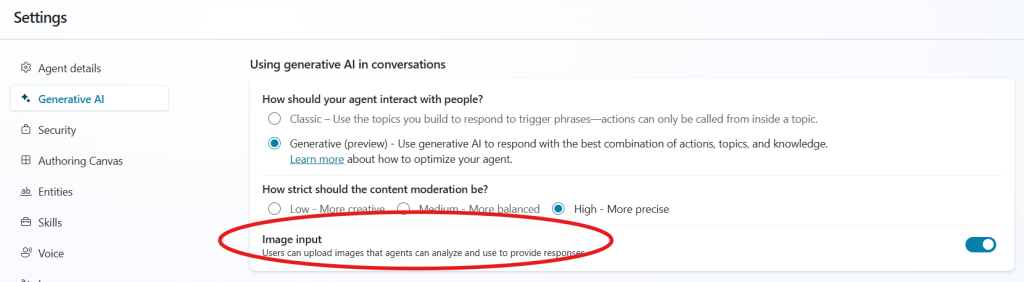
This one is among the more recent Copilot Studio AI features that were added and can be enabled or disabled by the maker. In the prompt box, the user sees a paper-clip icon indicating that a file can be uploaded. At this time, only images filetypes are supported, and the agent can analyze the image and provide contextual answers. In my testing I've found that even when enabled, this function does not work when your Agent is deployed to a custom website.
12/ Enhanced Search Results:
The most recent addition to Copilot Studio, this feature allows your Agents to benefit from semantic indexing of data in your tenant. This is a premium feature that requires Copilot for Microsoft 365 licensing. You can fill all the details about it in our article on Enhanced Search Results and Semantic Indexing here.
Final Thoughts
Nobody knows everything about everything, and I may have forgotten one or two Copilot Studio AI features. Can you think of any that I missed? And which features is YOU favorite AI feature in Copilot Studio? Tell us in the comments section because other readers want to know!
Note: This article was originally published in November 2024, but has received a major overhauled and re-published as a new article on January 23, 2025.